PS5 performance test
About 8 min read
Since launch, "GTA6 makes me nauseous" has become a frequent complaint on social media, with posts flooding Xiaohongshu and other platforms. The cause combination is clear: the game is locked at 30fps on all four consoles (PS5, PS5 Pro, XSX, XSS), while the game features fast camera movement and dense scene detail—at 30fps on a large TV, a quick camera swing easily upsets you.
The physiology of 3D motion sickness varies by person, but the remedy logic is universal: reduce the gap between what your eyes see and what your inner ear expects. In practice that's three layers—slow and steady the camera in-game, enable motion compensation on the TV, and eliminate frame drops on the console side. Specific values are given below, layer by layer.
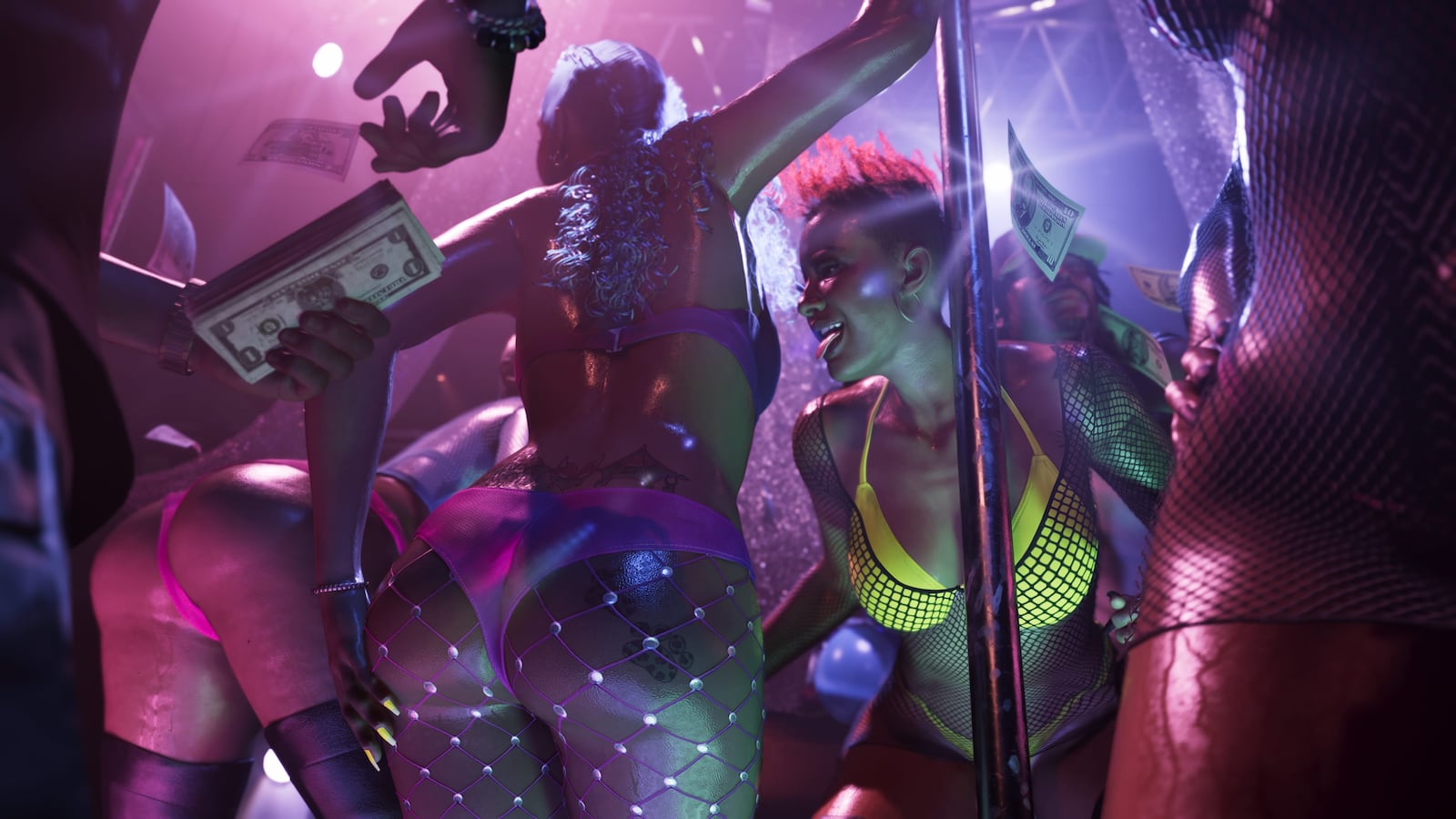
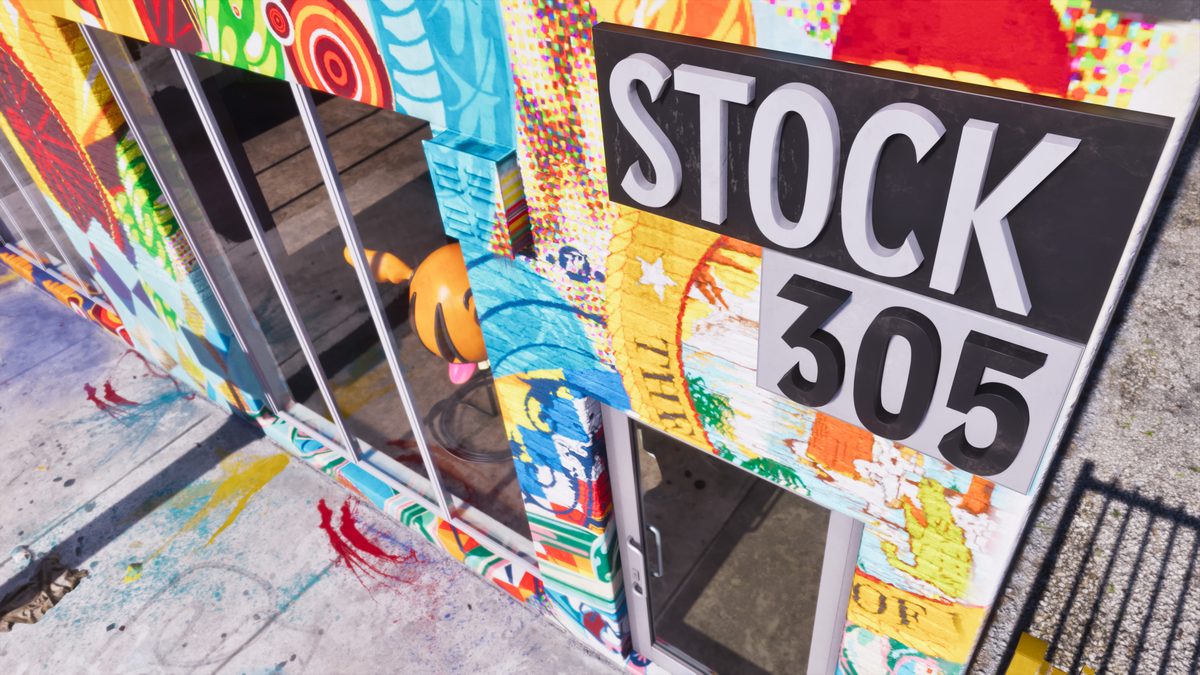
Another factor that amplifies dizziness is visual density: the game's scenes are packed with signs, graffiti, and posters. Glancing across a street like the one below at 30fps carries far more visual load than the previous game—which is why the same sensitivity settings make GTA6 more upsetting than its predecessor.
This is the layer with the most direct effect. A widely circulated community value set is shown below; the core logic is one sentence: the slower and steadier the camera, the less discomfort. You don't need to copy the numbers exactly—just get the direction right: start with this baseline, drive for ten-odd minutes, then fine-tune to your own feeling.
| Featured | Recommended value | Effect |
|---|---|---|
| Horizontal camera sensitivity | Lower by 6 steps | Slower left-right camera turns, less lateral whipping |
| Vertical camera sensitivity | Lower by 6 steps | Slower up-down camera turns |
| Camera acceleration | Reduce by 2 steps | Softer camera acceleration, less of a sudden jolt |
| Lateral follow speed | Set all to zero | Camera no longer auto-follows sway, steadier image |
| Always show center point | Story | Fixed visual anchor reduces motion sickness |
Motion blur is the most divisive setting in the community: one camp insists on 0 for a clean, sharp image; the other keeps it around 5 and finds it actually reduces stutter and dizziness. Both sides claim it cured them—which proves there's no standard answer, since the source of dizziness varies: some are sensitive to blur, others to low fluidity.
Practical advice: play 20 minutes on the default setting and note how you feel, then set motion blur to 0 and play 20 minutes; compare and keep whichever feels better. This step only you can test—no one can decide for you.
TV motion compensation (MEMC) usually causes tearing when playing 60fps games, so many people habitually keep it off; but GTA6 runs at a constant 30fps, where interpolation clearly helps—this time it's worth making an exception and turning it on.
Two console-side notes: some players found that PS5s left running for long periods suddenly suffer major frame drops in GTA6, recovering after a restart—whether or not memory state is truly the cause, restarting after long sessions is a zero-cost move; Xbox players should avoid the frame-rate unlock exploit: using Quick Resume to switch to 60/120Hz at boot does break the 30fps cap (measured on XSX: average 36-37fps, input latency down from 170 to about 120ms), but above 30fps the game speeds up—cutscenes aside, story players shouldn't use it. Details in the dedicated Xbox 60fps article.
Bottom line up front: if you already own a PS5 or XSX, don't upgrade for GTA6—the 30fps ceiling is set by the game itself, and even the Pro can't break through; what you're paying for is more stable frame delivery and higher clarity. Change settings first, wait for patches second.
For Series S owners: the machine can run it, just don't expect stability, and expanding storage requires Microsoft's proprietary expansion card. For those starting from scratch on a tight budget, the Series S is the cheapest ticket in (used prices around 1500 yuan, and with patience around 1000+ without a controller), at the cost of 720p internal rendering and frame rates that can dip below 30 at any time. For the best experience, pick the PS5 Pro—but you're buying stability and clarity, not smoothness.
| Platform | Frame rate performance | Positioning |
|---|---|---|
| PS5 | Locked at 30fps, occasional drops require restart | Standard experience, no VRR fallback |
| PS5 Pro | More stable at 30fps with higher clarity | Experience cap, not a framerate upgrade |
| Xbox Series X | Locked at 30fps, exploit can unlock it but speeds up gameplay | Story-focused players should avoid the exploit |
| Xbox Series S | 30fps with large fluctuations, may drop below | Bare minimum entry threshold |
| PC | Version unannounced, rumored Q1 2027 | Unconfirmed, rumors of high CPU load |
First, shorten each session: 30fps dizziness accumulates. Play 40 minutes, rest 10—far more comfortable than grinding through two hours—and it gives your eyes and vestibular system time to adapt.
Second, adjust your seating distance: sit farther from the TV and don't play lying down; an upright posture minimizes vestibular-visual conflict. Keep a background light on in the room—a pitch-black environment amplifies discomfort.
Third, accept individual differences: if full settings still leave you severely dizzy—or it persists outside the game—it may not be a settings issue. Consider playing less or consulting a doctor—games should never trade health for enjoyment. See the dedicated PS5 performance article for complete performance and frame-rate data.